6 best video editing software for YouTube in 2026
What editing software do YouTubers use in 2026? Here’s the best editing software for YouTube, from beginner level to pro apps for full movie-style projects.
8 minute read
Serious about YouTube in 2026? You can’t avoid editing anymore. Even a simple talking-head video needs cuts, captions, a bit of color correction, and maybe some music to keep viewers watching.
If you’re here, you probably ask the same question over and over again: what editing software do YouTubers use, and which one should I start with?
The good news is that “video editor” no longer (especially with AI video generators) means “scary professional studio tool.” There are plenty that cover everything from basic trimming to keyframe animations. And many of them are surprisingly affordable or even free.
Below, we’ll walk through some of the best video editing software for YouTube in 2026, starting with a very creator-friendly option, then move into more advanced tools.

YouTube editing software: what actually matters in 2026
Speed and ease of use. If it takes you three evenings to cut a 10-minute vlog, you’ll burn out fast. Your editor should feel intuitive, even if you’re just learning the basics.
YouTube-ready exports. Presets for YouTube, vertical Shorts, or just options for some other social platforms save time and keep quality consistent.
No watermarks. Some free versions export with a watermark. That’s fine for testing, but long-term you want clean videos with no watermark on top of your content.
Room to grow. You might start with basic cuts and text, but later you’ll definitely come up with something creative to add motion tracking, advance further your audio quality, or experiment with advanced effects without switching software every few months.
Keep these points in mind as you compare the options below.
6 best YouTube video editors of 2026
1. Movavi Video Editor
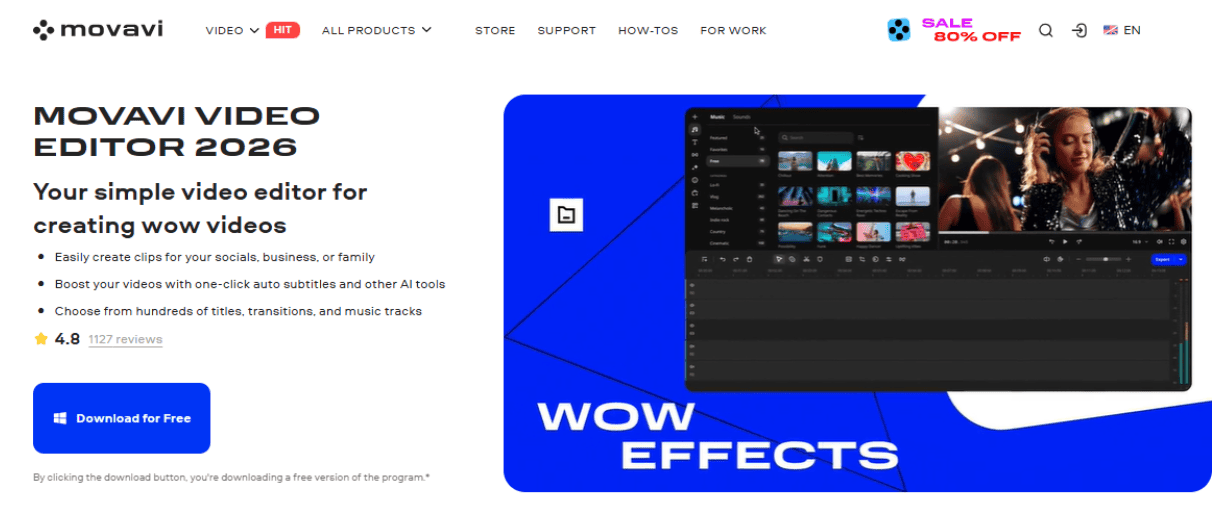
The interface is clean: drag your clips to the timeline, trim them, drop in transitions, add titles, and you already have a good video. On top of the basics, Movavi packs in a lot of quality-of-life features for YouTube editing, like ready-made intros, music, and effects so you can build a consistent style fast.
Recent versions’ updates lean heavily into smart tools: AI background removal (no green screen needed), AI noise removal, motion tracking, auto subtitles, and silence removal. All of this helps you speed up the parts that usually take the longest.
There’s a free trial to get a feel for it; the full version starts at $17.95/month, which is fairly cheap. For many YouTubers, Movavi Video Editor hits a very comfortable sweet spot between beginner-friendly and genuinely powerful.
2. DaVinci Resolve
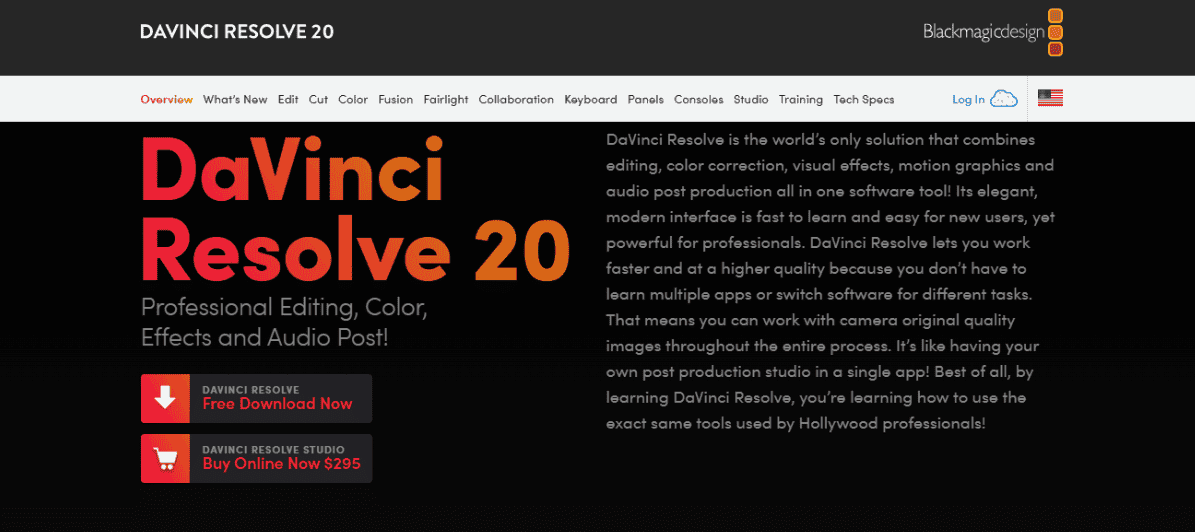
Resolve combines editing, color grading, visual effects, and audio mixing in a single app. That’s amazing, but also intense: there’s a learning curve, especially if you’ve never edited anything in your life. In return, you get extremely precise control, plus advanced features like color grading nodes, masking, and keying.
If you’re dreaming about cinematic travel videos or short films, and you’re ready to put in the time, DaVinci Resolve can take you there. Just don’t expect it to feel “basic” – it’s a serious tool.
3. Adobe Premiere Pro
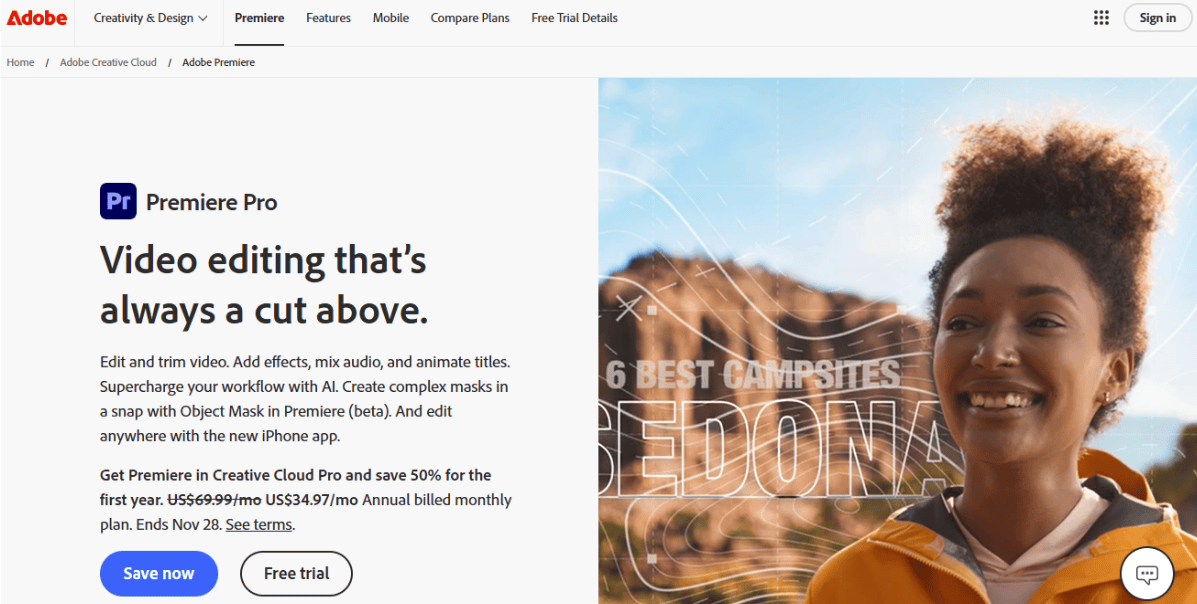
As a YouTuber, you get a full non-linear editor that can handle any format, complex multi-layer timelines, and advanced color and audio tools. There are tons of third-party plugins and templates for intros, text animations, and transitions, so you can build a branded look pretty quickly.
The downsides: high price tag for subscription ($69.99 per month) and it can be heavy on weaker computers.
4. CapCut
You get a lot of smart presets and templates, auto-captions, trending effects, and easy beat-sync for music. It’s built for speed: cut your clip, drop it into a template, adjust a few details, and you’re done. For people who don’t want to design everything from scratch, that’s a huge time saver.
Some exports and templates may add watermarks or require an account, so check your settings before posting. But as a free way to experiment with styles and quick content, CapCut is hard to ignore in 2026.
5. iMovie

You can cut clips, add titles, transitions, and apply simple color correction. There are built-in soundtracks and effects, and the whole app is designed so that you don’t get lost in settings. Export presets for YouTube make it easy to hit upload without worrying too much about bitrate and codecs.
Eventually you might outgrow iMovie and move to something more advanced, but as a first step into YouTube editing software on macOS, it’s reliable and more than enough for basic vlogs, reviews, and simple tutorials.
6. Shotcut

You get multiple tracks, transitions, filters, color tools, and a decent audio toolkit. It runs on Windows, macOS, and Linux, which is handy if you switch systems or work on different machines.
Shotcut is a good option if you want full control and long-term flexibility without any subscriptions. It’s not the prettiest, but it gets the job done once you get used to the interface.
Quick tips for starting a YouTube channel in 2026
Start by choosing a clear niche. “Lifestyle” is vague; “budget travel for students” or “productivity tips for junior designers” is specific. A clear niche makes it easier to decide what to film and what people should expect when they hit subscribe.
Think in series, not one-off videos. Instead of random uploads, plan simple recurring formats: “3-minute reviews,” “Monday desk setups,” “quick editing tips,” or something like “how to upscale with AI.” This helps you stay consistent and makes it easier for new viewers to binge your content.
Keep your first videos simple. Use your chosen editor to cut out mistakes, add a bit of music, basic titles, etc. Don’t aim for a Hollywood movie on day one; focus on a good story and a thumbnail that actually makes people curious.
Finally, watch your own videos like a viewer. Ask yourself: where would I click away? Then go back into your editor and tighten those parts. Over time, this simple habit will improve your pacing, sharpen your storytelling, and naturally improve your editing skills.
Wrapping up
When you’re picking the best video editing software for YouTube, there’s no single “perfect” option. If you want something that just works and helps you publish consistently, a creator-friendly app like Movavi Video Editor is an easy recommendation. If you’re chasing full cinematic control, DaVinci Resolve or Premiere Pro might be worth the time and money. And if you’re all about quick clips and Shorts, mobile-focused apps like CapCut or VN can carry an entire channel.
Pick one, stick with it for a while, and focus on making videos. In the long run, your ideas, your voice, and your consistency will matter more than which editor is on your screen.