How to use AI transitions in real estate videos
Learn how to turn listing photos into attention-grabbing real estate videos with AI movement, lighting, and seasonal transition effects.
8 minute read
AI transitions add movement, changing light, or seasonal effects to a listing photo. A still exterior can become a slow approach toward the house. A daytime photo can shift into twilight. An interior image can move gently toward the room’s main feature.
These short clips work well as hooks for Instagram Reels and TikTok. They catch attention at the start, while the rest of the video gives buyers a clear and accurate look at the property.
Why listing photos need movement on social media
Listing pages and social feeds ask viewers to behave differently. On a property page, buyers can stop, zoom in, and compare rooms. In a fast-moving social feed, the opening must give them a reason to keep watching.
TikTok has identified watch time as a recommendation signal and advises creators to capture attention early. That doesn’t mean every listing needs an aggressive effect. One controlled transition can introduce the property, while the rest of the video focuses on clear and accurate information.
Social media also has a meaningful role in real estate lead generation. According to the 2025 REALTORS Technology Survey, 75% of surveyed NAR members used social media, and 39% named it as the technology producing their highest number of quality leads.
How to choose the right transition
Not every transition needs AI. Traditional transitions control how one shot connects to the next, while AI effects add movement or visual change inside the shot.
| Source photo or scene | Recommended transition | Best marketing use | Main risk | Review before publishing |
|---|---|---|---|---|
| Opening exterior | Fade-in followed by a subtle AI push toward the home | Reel opening, coming-soon post, or listing introduction | Warped rooflines, landscaping, or driveway edges | Compare the full facade and property boundaries with the original photo |
| Exterior to entry | Straight cut or controlled AI transition between the two images | Beginning a property tour | AI may invent a walkway, doorway, or spatial connection | Confirm that the transition doesn’t imply an inaccurate route into the home |
| Living room | Straight cut, crossfade, or gentle AI parallax | Showing the main living space clearly | Stretched furniture, walls, windows, or room proportions | Check vertical lines, furniture scale, and permanent features |
| Kitchen | Straight cut or match cut from a wide shot to the island or main feature | Feature-focused Reel or listing tour | Excessive motion can distort cabinets, counters, and appliances | Confirm that surfaces, fixtures, and dimensions remain unchanged |
| Pool or outdoor space | Straight cut or slow AI push toward the feature | Lifestyle post, summer campaign, or luxury listing | AI may change the pool shape, waterline, landscaping, or neighboring property | Compare boundaries, structures, and permanent outdoor features |
| View or balcony | Crossfade or restrained AI reveal | Luxury campaign or location-focused video | The effect may expand, sharpen, or invent parts of the view | Confirm that the visible scenery and sightline match the original photo |
| Day-to-twilight exterior | AI lighting transformation followed by a crossfade | Evening open house or premium social campaign | Added lights or altered exterior details may imply features that don’t exist | Check every window, light source, fixture, and architectural detail |
| Seasonal exterior | AI seasonal transformation | Holiday post, listing refresh, or long-running campaign | Snow, foliage, weather, or landscaping may misrepresent current conditions | Label the effect as simulated and preserve all permanent property features |
| Final property image | Slow crossfade into the address or CTA screen | Ending a listing video | Important details may disappear too quickly | Keep the address and CTA readable long enough to understand |
| End card | Fade-out | Clean ending for Reels, property pages, and presentations | A long fade can weaken the CTA | Make sure the contact information appears before the screen goes fully dark |
AI transition effects that work for listings
Different effects are useful for different types of posts. Choose an effect based on the photo, the property, and the message you want to communicate.
Camera movement
A camera effect can turn an exterior photo into the opening scene of a listing video. The camera might appear to approach the entrance, pull away from the building, or reveal the property from above.
These effects work well for:
- New listing videos
- Coming-soon announcements
- Luxury property Reels
- New developments
Keep the movement smooth and controlled. A fast spin or extreme zoom might attract attention, but it can also distract viewers from the property.
Day-to-twilight effects
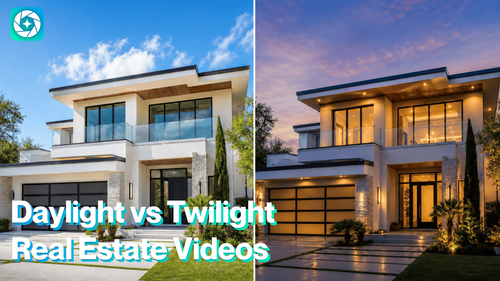
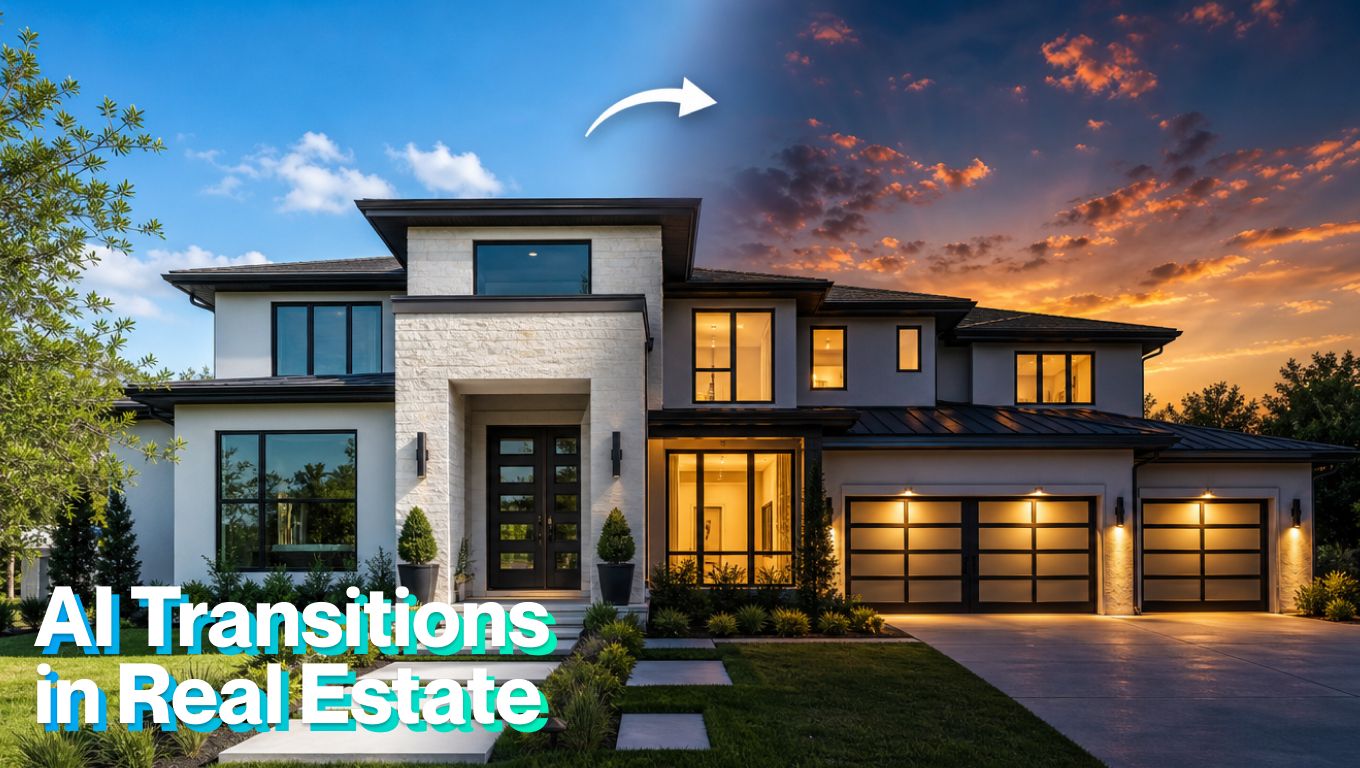
Twilight photos often make a property feel warm and inviting. An AI transition can begin with a daytime photo and gradually introduce a darker sky, warmer exterior lighting, and illuminated windows.
This effect can work well for higher-end homes, evening open houses, and properties with attractive exterior lighting.
Weather and season changes
A seasonal transition gives you another way to use listing photography after the initial launch.
For example, you could create:
- A summer-to-fall transition
- A summer-to-winter version
- A cloudy-to-clear effect
- A rain-to-sunshine transition
- A warm evening variation
These clips can support seasonal campaigns, holiday posts, price updates, or listings that have remained active for several months.
Interior movement
AI transitions can also add movement to living rooms, kitchens, bedrooms, and other interior spaces.
An interior photo works best when it has:
- A clear focal point
- Visible depth
- Straight walls and vertical lines
- Good lighting
- Enough open space for simulated movement
A slow push toward a fireplace, kitchen island, window, or seating area can make the viewer feel as though they are entering the room. Avoid aggressive movement in small spaces. The transition earns attention. The rest of the tour explains the property.
How to add AI transitions in TensorPix Property Video Maker
TensorPix Property Video Maker combines photo animation with the rest of the listing-video workflow. You can start with your existing property photos, add movement or visual changes, and place the generated clip directly into a complete property tour.
1. Start a property video project
Log in to TensorPix, and open the Property Video Maker. Create a new project, then upload your listing photos or import the available media from a supported property listing.
2. Add the strongest listing photos
Place the most important images first or import them directly from Zillow: the exterior, main living area, kitchen, primary bedroom, outdoor space, or view. Avoid dark, cluttered, repetitive, or heavily edited photographs. TensorPix uses the selected images and property details to prepare the first video draft.
3. Choose the video format
Select a vertical format for:
- Instagram Reels
- TikTok
- Facebook Reels
- YouTube Shorts
- Instagram Stories
Use a horizontal format for YouTube, property pages, listing presentations, email campaigns, and other wide-screen placements.
4. Pick the opening photo
Choose the image that gives viewers the best reason to stop scrolling.
This will often be the main exterior, but it could also be a dramatic living room, a large kitchen, a pool, or an impressive view.
5. Select an AI transition
Click on Edit option and pick an effect that fits the image. TensorPix can add camera movement, change the lighting, or introduce a seasonal look.
For example:
- Add a forward move to a driveway photo
- Turn a daytime exterior into a twilight scene
- Add depth to a living-room image
- Create a seasonal version of the property
- Move gently toward a pool, terrace, or view
The effect should support the image rather than overpower it.
6. Review for accuracy
Before exporting, check every caption, room label, property detail, price, and claim. Make sure the video doesn't imply features the property doesn’t have. AI can create a strong first draft, but the agent still needs to review it like any other listing material.
7. Generate and review the result
Compare the generated clip with the original listing photo.
Check the:
- Windows and doors
- Roof and exterior walls
- Room dimensions
- Furniture and fixtures
- Landscaping
- Driveway and neighboring properties
- Views and outdoor features
Regenerate or remove the transition if the AI changes an important property detail.
Final thoughts
AI transitions for real estate help agents create more video content from the listing photos they already have. One photo can become a moving Reel opener, a twilight clip, or a seasonal post without another property visit.
The best videos use these effects with restraint. Start with one strong transition, follow it with accurate listing images, and guide the viewer through the home in a clear order.