When to use cinematic 3D Text for real estate photos and property videos
Learn how to add cinematic 3D text to real estate photos and property videos using smart AI placement, animation, and listing-specific messages.
7 minute read
Cinematic 3D text helps those scenes communicate faster. Instead of placing a flat caption at the bottom of the screen, AI can position bold text inside the property scene. The words can appear above a roofline, beside an entrance, behind landscaping, over a pool, or along an open section of sky. The result feels less like a basic listing slideshow and more like a designed real estate campaign.
What is cinematic 3D text for real estate?
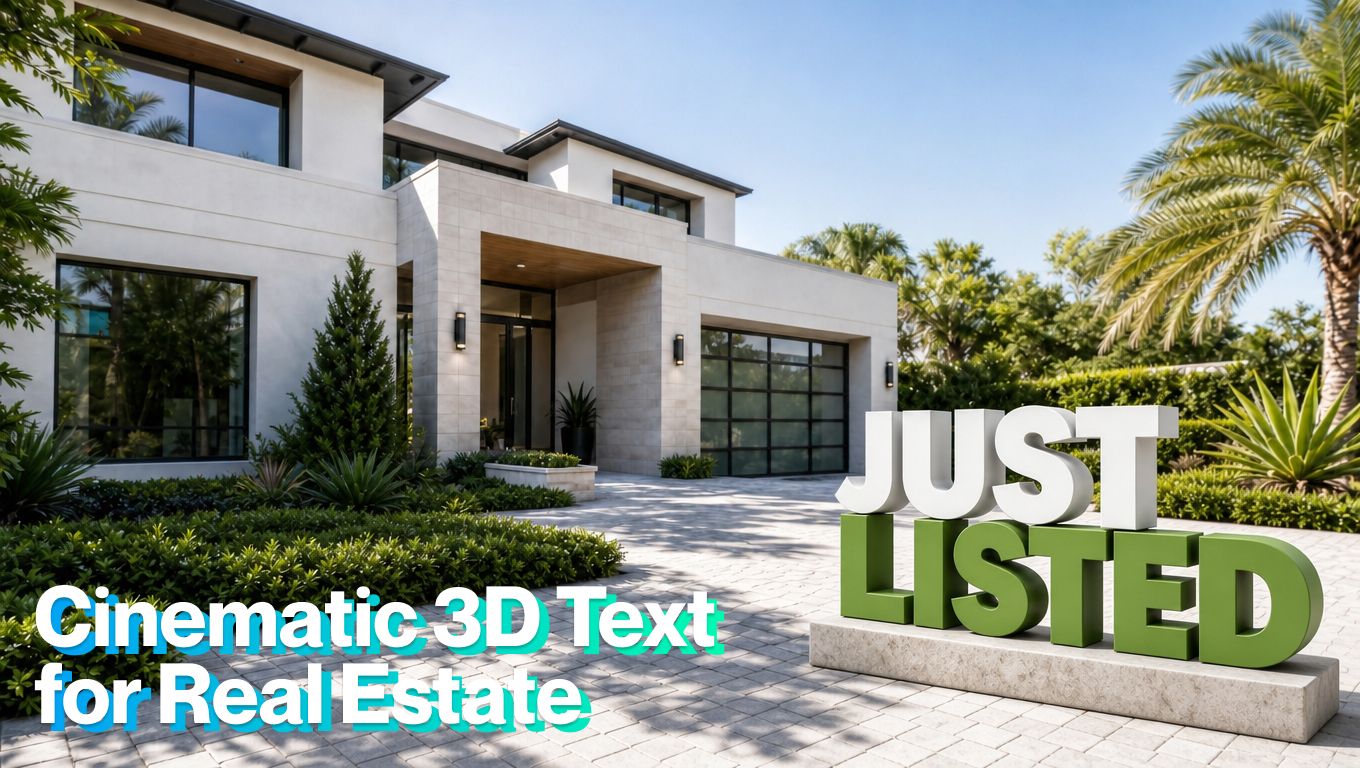
Cinematic 3D text is an AI-generated visual element placed within a real estate photo or video. It follows the image’s perspective, depth, lighting, and available space so that the text appears to occupy the same environment as the property.
Common messages include:
- Just Listed
- For Sale
- Open House
- Price Reduced
- New to Market
- Available Now
- Waterfront Living
- Private Pool
- Downtown Views
Unlike an ordinary text overlay, 3D text for real estate photos can interact with the image. Part of a letter may appear behind a tree, cast a subtle shadow, or follow the angle of a driveway or building. That visual depth makes the message feel connected to the listing rather than pasted over it.
When to Use cinematic 3D Text in real estate videos
Cinematic 3D text works best when it makes the listing message faster to understand. It should guide attention, not compete with the property.
| Use 3D text when | Avoid it when | Better alternative |
|---|---|---|
| The video needs a fast opening message, such as “Just Listed,” “Open House,” or “Price Reduced” | The property photo is already visually busy or crowded | Use a simple caption or title card |
| The image has open visual space, such as sky, driveway, lawn, pool area, terrace, or blank wall | The text would cover windows, views, room layout, finishes, or key features | Use lower-third captions |
| You want to make a social video feel more polished and campaign-like | The listing needs a quiet, editorial, or luxury tone | Use subtle typography and slower pacing |
| The message is short enough to read in one or two seconds | The phrase needs a full sentence to make sense | Use 3D text for the headline and regular captions for details |
| The text highlights a real property feature, such as “Private Pool,” “City Views,” or “Waterfront Living” | The wording exaggerates or implies a feature buyers will not actually find | Use factual feature captions |
| You are creating multiple campaign versions from the same listing media | Every scene would need a different 3D text effect | Use one strong 3D text opener and simple transitions after that |
| The animation supports the camera movement and perspective of the scene | The effect looks like a novelty or distracts from the home | Use a standard listing video or photo-to-video edit |
Why add 3D Text to real estate videos?
Property videos usually have two goals: show the home and communicate why someone should pay attention to it now.
Cinematic text can help with both.
Communicate the main message immediately
A viewer shouldn’t need to read a long caption to discover that a property is newly listed, has an upcoming open house, or received a price adjustment.
A short 3D message can make that information visible in the opening scene.
Create a stronger visual hierarchy
Listing photos contain many competing details. Architecture, landscaping, furniture, windows, and surrounding buildings all demand attention.
Smart AI 3D text placement gives the viewer a clear starting point without covering the feature being promoted.
Turn one listing into several campaigns
The same property media can support multiple videos:
- A “Just Listed” launch
- An open-house announcement
- A feature-focused Reel
- A price-reduction update
- A final availability reminder
- A recently sold post
Changing the text and opening scene creates a new promotional angle without requiring another property shoot.
Make photo-based videos feel more produced
Animated 3D text can introduce movement before the property tour begins. The words might rise from behind the roof, track beside the building, appear as the camera pushes toward the entrance, or settle naturally into the scene.
Used selectively, this gives listing photos more cinematic energy.
What should the 3D text say? The best 3D text is short enough to understand almost instantly. A good rule is to use 2-4 words for the 3D text, then put the details in regular captions, voiceover, or post copy.
Think of the 3D text as the headline, not the full message.
Examples:
Just Listed Caption: 1248 Maple Avenue, 4 beds, 3 baths
Open House Caption: Saturday, 12-2 PM
Private Pool Caption: Outdoor entertaining area with covered patio
Price Reduced Caption: New price: $725,000
Waterfront Living Caption: Private dock, sunset views, and direct water access
City Views Caption: Floor-to-ceiling windows in the main living area
Avoid long phrases like “Beautifully updated four-bedroom family home with a private backyard.” That may work in a caption, but it is too much for cinematic 3D text. Use the 3D layer for the main idea, then let captions carry the supporting information.
How to add cinematic 3D text in TensorPix Property Video Maker
The cinematic 3D text workflow is designed to follow the same guided process used to create property videos from existing listing assets.
1. Start a property video project
Log in to TensorPix and open the Property Video Maker. Create a new project, then upload your listing photos or import the available media from a supported property listing.
2. Choose the video format
Decide where the video will be published.
Vertical works best for Instagram Reels, TikTok, YouTube Shorts, and Facebook Reels. Horizontal is better suited to YouTube, property pages, listing presentations, and email campaigns.
3. Add the strongest listing photos
Place the most important images first or import them directly from Zillow: the exterior, main living area, kitchen, primary bedroom, outdoor space, or view. Avoid dark, cluttered, repetitive, or heavily edited photographs. TensorPix uses the selected images and property details to prepare the first video draft.
4. Type your message
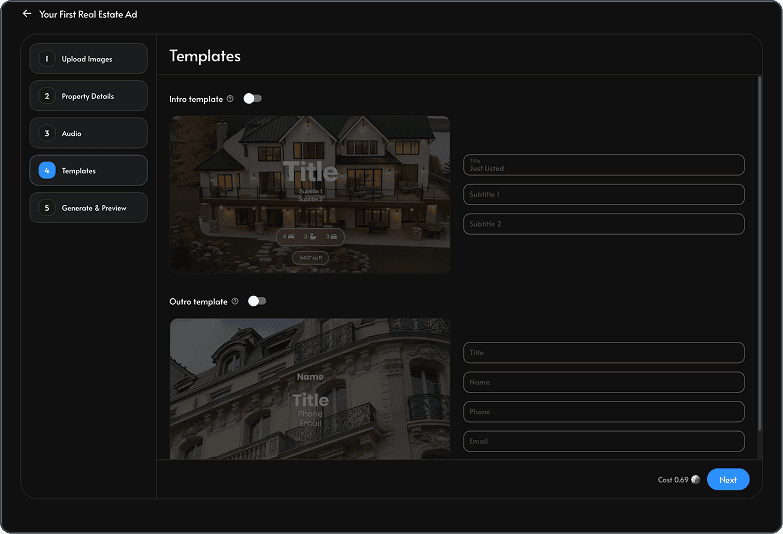
Using the Intro & Outro tab, enter one short phrase. You can use the property status, campaign announcement, location, or a specific selling point.
Examples include “Just Listed,” “Open House,” “Price Reduced,” “Private Pool,” and “City Views.”
If you are unsure what to write, AI text suggestions can provide ideas based on the listing and selected photo. Review every suggestion before using it.
5. Review for accuracy
Before exporting, check every caption, room label, property detail, price, and claim. Make sure the video doesn't imply features the property doesn’t have. AI can create a strong first draft, but the agent still needs to review it like any other listing material.
6. Generate your first video
Create the version that matches the channel. If the listing will be promoted in several places, generate more than one version and download the final version once you are satisfied.
Final takeaway
Cinematic 3D text can help property photos and videos communicate faster. It gives agents a more visual way to announce a listing, promote an open house, highlight a feature, or refresh an existing campaign.
The best results don’t depend on the largest lettering or most elaborate animation. They use a short message, a style suited to the property, realistic placement, and enough restraint to keep attention on the home.